

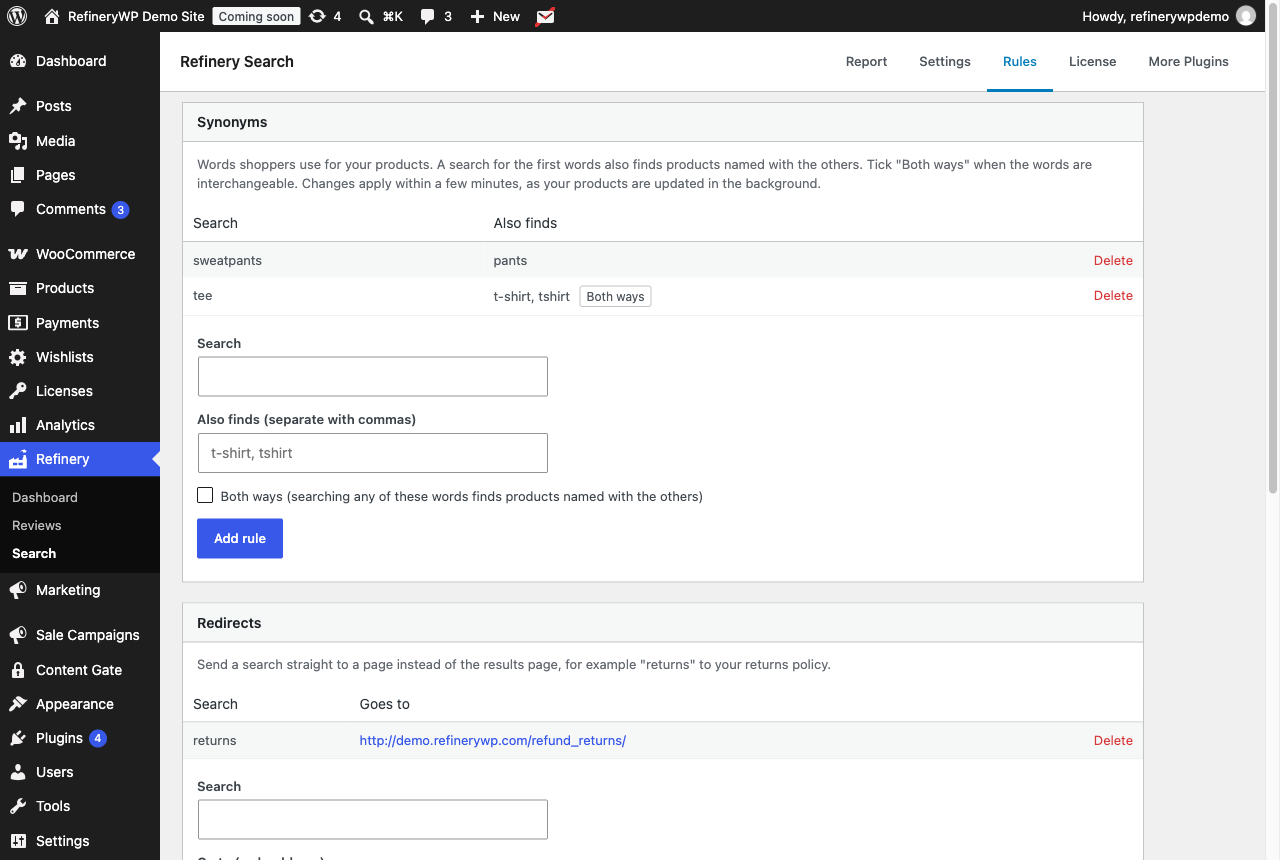
Refinery Search has a Rules tab for teaching search the store’s own words: synonyms for words shoppers use that are not in product names, redirects that send a search straight to a page, and pinned products that come first for a search.
Adding a synonym
- Go to Refinery > Search > Rules.
- Under Synonyms, enter the words shoppers search for, for example
tee. - Under Also finds, enter the words used in product names, separated by commas, for example
t-shirt, tshirt. - Tick Both ways when the words mean the same thing, so a search for any of them finds products named with the others.
- Click Add rule.
Synonyms apply within a few minutes, as products are updated in the background.
Adding a redirect
- Under Redirects, enter the search words, for example
returns. - Under Go to, enter the full web address of the page, starting with
http. - Click Add rule.
A shopper who submits that exact search goes straight to the page instead of the results page. Suggestions still appear as they type.
Pinning products
- Under Pinned products, enter the search words.
- Under Products, in order, search for and choose the products to show first.
- Click Add rule.
Pinned products come first, in the chosen order, in the suggestions and on the first page of results, for searches that match the words exactly.
Suggested synonyms
When shoppers search for something, find nothing, then search again with different words within two minutes and choose a product, Refinery Search notes the pair. Once two or more visits do the same, the pair appears under Suggested synonyms with Add synonym and Dismiss buttons. Suggestions are updated nightly when Learn from shoppers is on.
The full report also has Add synonym and Add redirect links next to each search that found nothing.
Deleting a rule
Each rule is listed under its section with a Delete button.