

Live suggestions are the dropdown that appears under a search field as a shopper types. It lists matching products, with image, price and stock, and matching blog posts, and links to the full results page. Shoppers can use it with a mouse, a touch screen or the keyboard (arrow keys, Enter and Escape), and screen readers announce how many suggestions are shown.
How results are ordered
- Products whose name contains the whole search phrase.
- Products whose name contains every search word.
- Other matches.
Within each group, products in stock come before out-of-stock ones, then best sellers come first. Learning from shoppers adds what shoppers choose and buy from search, and pinned products come before everything. The same order is used on the results page.
Suggestions match the words in names. When names find fewer products or articles than the dropdown shows, the rest is filled with ones that mention every search word in their description or content, best sellers first, as the results page lists them after its ranked matches. A search for a brand name that appears in every description, for example, still fills the dropdown.
Settings
Go to Refinery > Search > Settings > Suggestions.
| Setting | What it does |
|---|---|
| Show suggestions | Turns the dropdown on or off. Searches can still be recorded for the report with it off. |
| All search fields | Adds suggestions to every search field on the site. Turn off to use them only where the
shortcode is placed. |
| Products shown | How many products the dropdown lists (5 by default). |
| Show articles / Articles shown | Lists matching blog posts under the products. |
| Start after | How many letters a shopper types before suggestions appear (2 by default). |
| Hide prices | Leaves prices out. Turn on when prices differ by customer, such as wholesale or member pricing, currency switchers or prices by location. Otherwise suggestions show the price a logged-out shopper sees. |
Adding a search field
Most themes have a search field in the header. A store without one can place the shortcode on any page, post or widget area:
With products_only="yes" (the default), pressing Enter opens the Products tab of the results page.
Speed
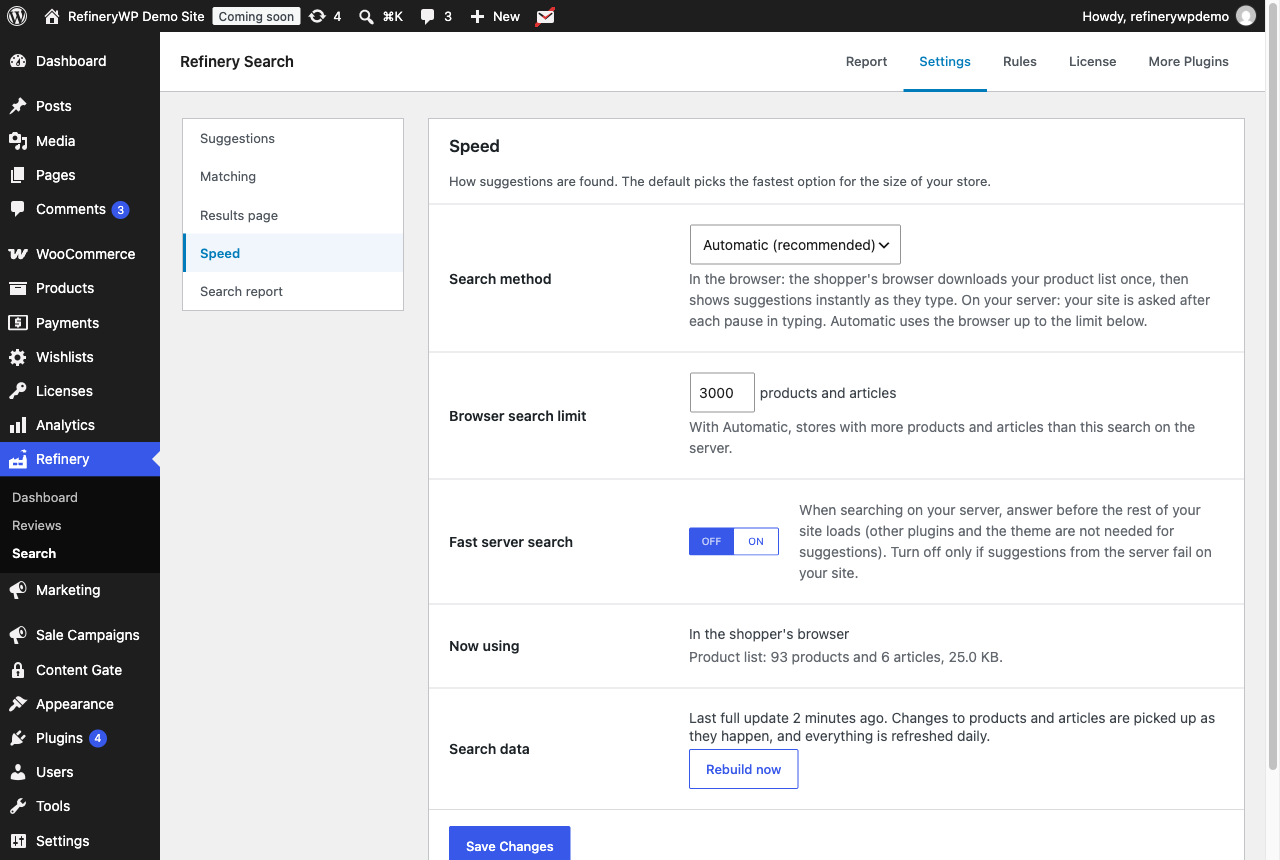
Go to Refinery > Search > Settings > Speed. Search method decides where suggestions are found:
- In the shopper’s browser: the first time a shopper clicks into a search field, their browser downloads a small list of the store’s products (about 80 KB for 2,000 products). Every keystroke after that is answered instantly, with no request to the site.
- On your server: after each pause in typing, the site is asked for suggestions. With Fast server search on, the answer is sent before the rest of WordPress, the theme and other plugins load, which is several times faster than a normal request.
- Automatic (recommended): the browser for stores up to the Browser search limit (3,000 products and articles by default), the server above it.
The Now using line shows the method in use and the size of the product list. Turn off Fast server search only if suggestions fail on the site, for example when a security plugin blocks the request; the plugin then uses the standard WordPress REST API.
Page caching
Suggestions load in the shopper’s browser, so they work on cached pages and behind content delivery networks. When products change, the product list gets a new name, so shoppers never see an old one for long.
Troubleshooting
A price looks out of date
Prices are saved when a product is saved and refreshed every night. A price changed by a plugin without saving the product (for example a scheduled sale starting) updates at the next nightly refresh, or at once with Rebuild now. Sales from Refinery Sales & Deals are refreshed as campaigns start and end.
The dropdown appears behind other content
The dropdown is placed right after the search form. A theme header with a low stacking order can cover it. Add custom CSS such as .refinery-search-panel { z-index: 99999; } under Appearance > Customize > Additional CSS.