

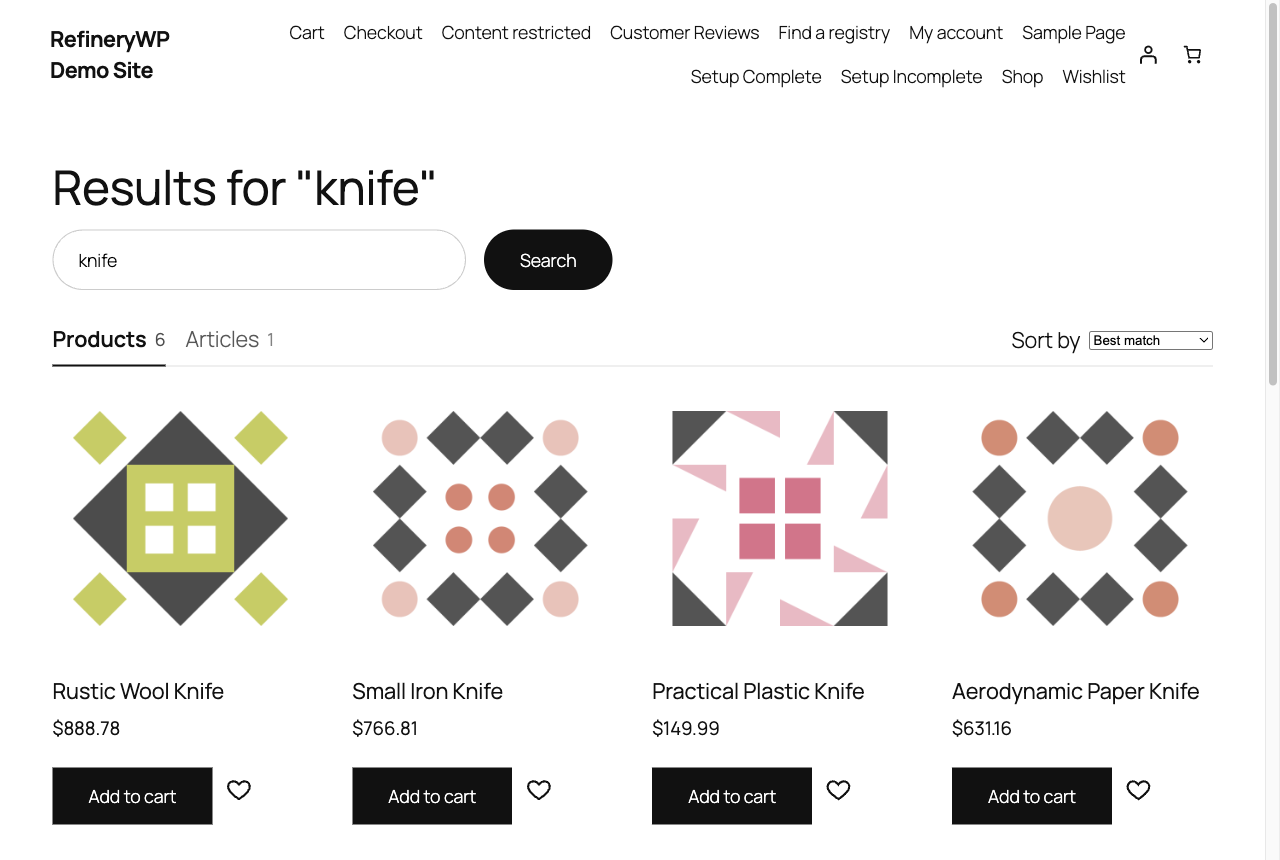
When a shopper presses Enter or chooses All products in the suggestions, Refinery Search shows a results page in the theme’s own header and footer. Products use the theme’s own product cards, so the page matches the shop, and they appear in the same order as the suggestions.
What the page shows
- A heading with the search words and a search field, with suggestions.
- Tabs with counts: Products, Articles and, when turned on, Pages. The page opens on the first tab with results.
- A Sort by menu: Best match, Best selling, Price: low to high, Price: high to low and Newest.
- Numbered pages or a Load more button. The search, tab, sort and page are kept in the web address, so results can be shared and the Back button works.
- Products that only mention the search words in their description, after the ranked matches, so nothing the store’s normal search finds goes missing.
The page respects catalog visibility and WooCommerce’s Hide out of stock items from the catalog setting. Results pages are not indexed by search engines.
When nothing matches
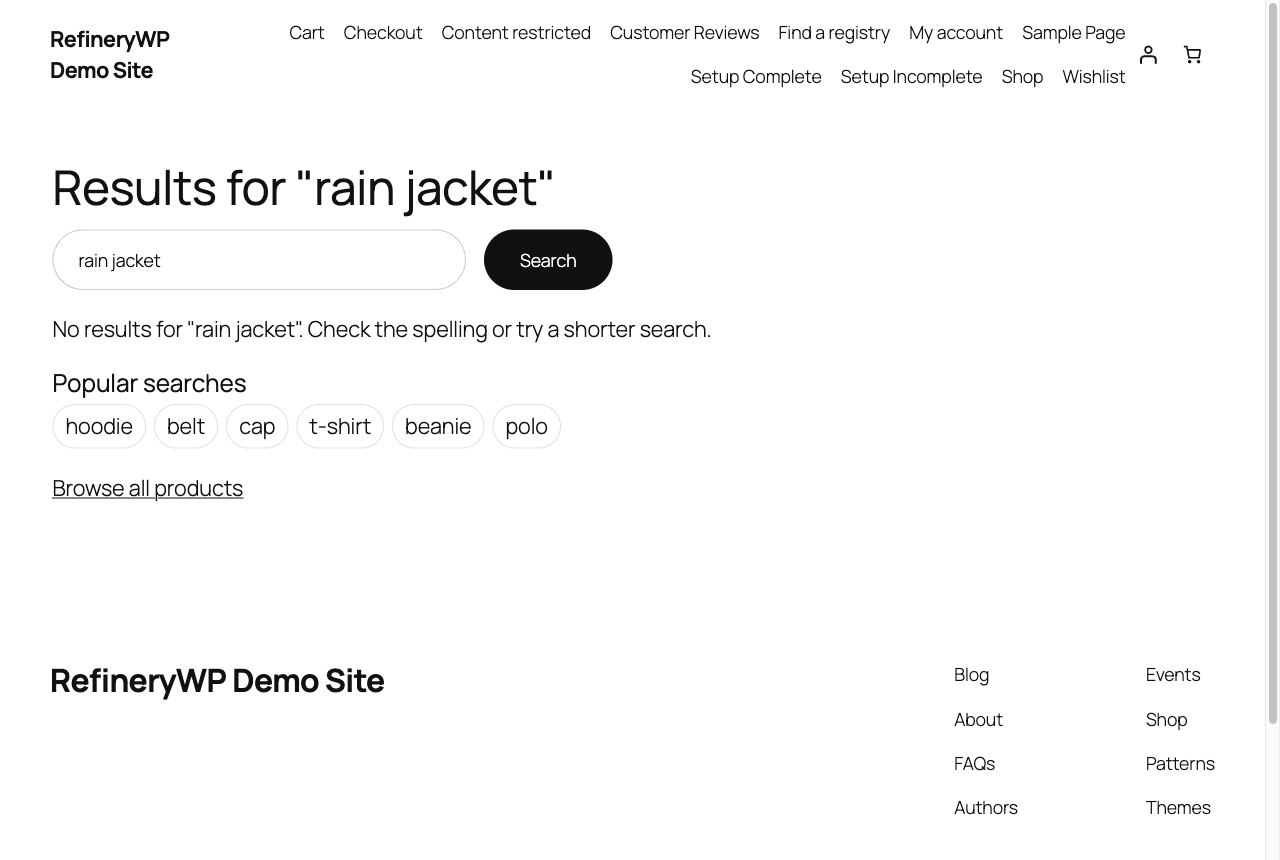
The page says so, suggests popular searches (searches other shoppers made recently that found products) and links to the shop. A search is only suggested when at least three different visits made it and it still finds products, so made-up words never appear there. The page also says which corrected words it searched for (see typo tolerance) and, with Refinery Product Recommendations active, shows recommended products.
Settings
Go to Refinery > Search > Settings > Results page.
| Setting | What it does |
|---|---|
| Refinery results page | Shows the results page described here. Turn off to keep the theme’s own results page. |
| Pages tab | Also lists matching pages, such as a shipping or returns page. |
| Results per page | 0 uses the shop’s number of products per page. |
| More results | Numbered pages or a “Load more” button. |
| Popular searches | Suggests popular searches when nothing matches. |
| Rank your theme’s results | With the Refinery results page off: orders the theme’s results page the same way as the suggestions. Any sort a shopper picks is kept. |
Block themes
On block themes, the page uses the theme’s header and footer template parts. A search template the store edited in the Site Editor (Appearance > Editor > Templates) is always kept instead. To show these results in an edited template, add the Search results block from Refinery Search to it.
Changing the page from a theme
- Copy
wp-content/plugins/refinery-search/templates/results.phptorefinery-search/results.phpin the theme (or child theme) folder to change the results content. - Copy
templates/search-results.phptorefinery-search/search-results.phpin the theme to change the whole page, header and footer included. - Edit the copy. Plugin updates do not overwrite it.
Troubleshooting
Products show as a plain list
The page wraps products the way WooCommerce’s own shortcodes do. A theme that styles product grids only on shop pages may need CSS for .refinery-search-results-page ul.products. Report the theme to Refinery support so it can be covered.